Billing
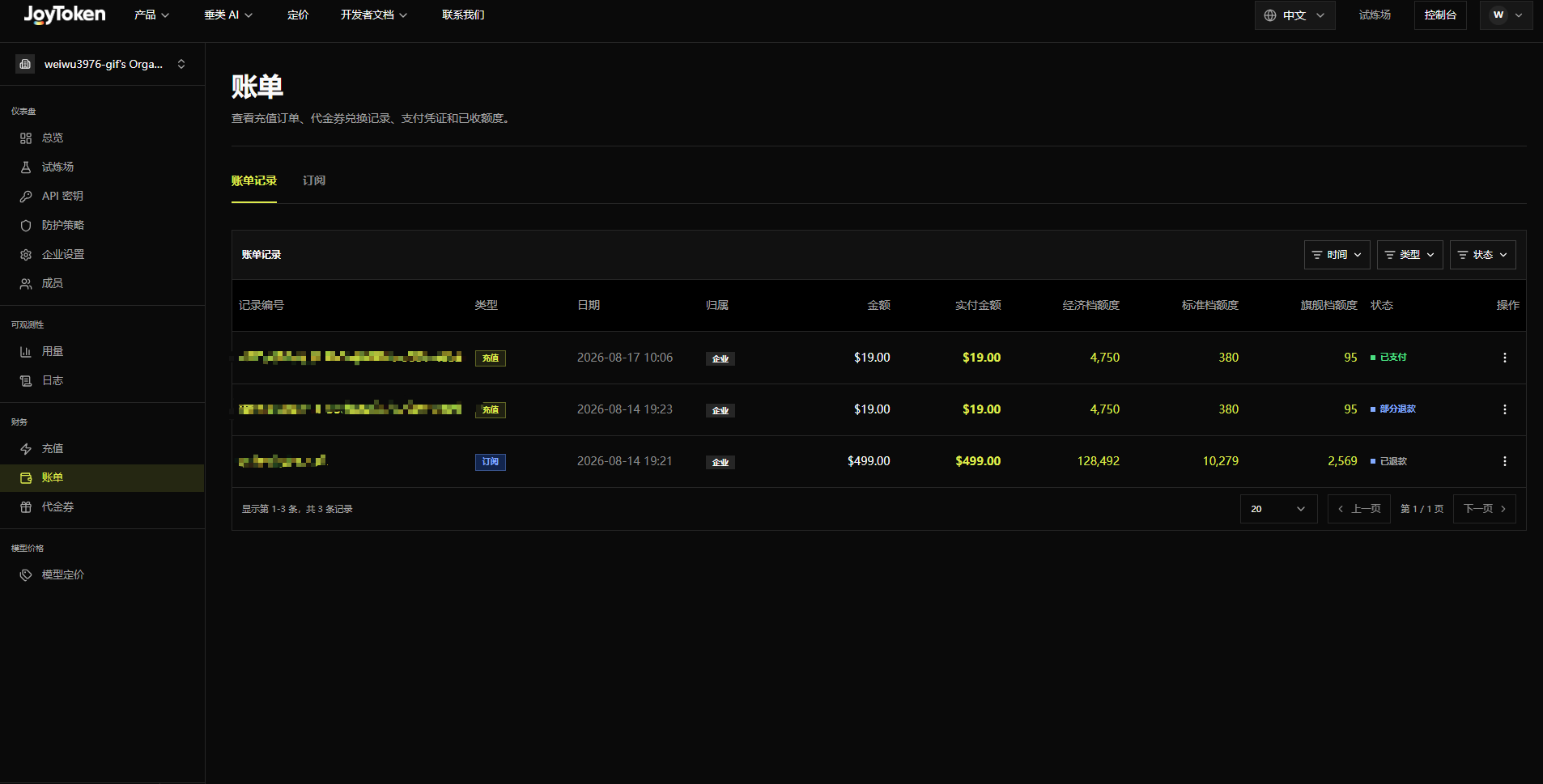
From the Billing menu, view top-up orders, voucher redemption records, payment receipts, and received Credits, split into the Billing Records and Subscriptions tabs.
Billing Records
Fields: Record Number, Type (Recharge/Subscription), Date, Owner, Amount, Amount Paid, Economy/Standard/Premium Credits, Status (Paid/Partially Refunded/Refunded), and Actions.
Filter by Time, Type, or Status. Use the row menu (⋮) to view details or receipts.

Actions
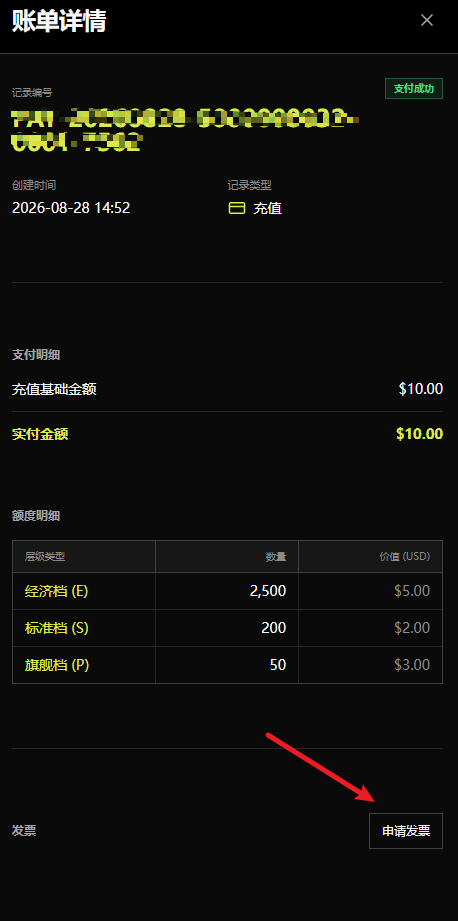
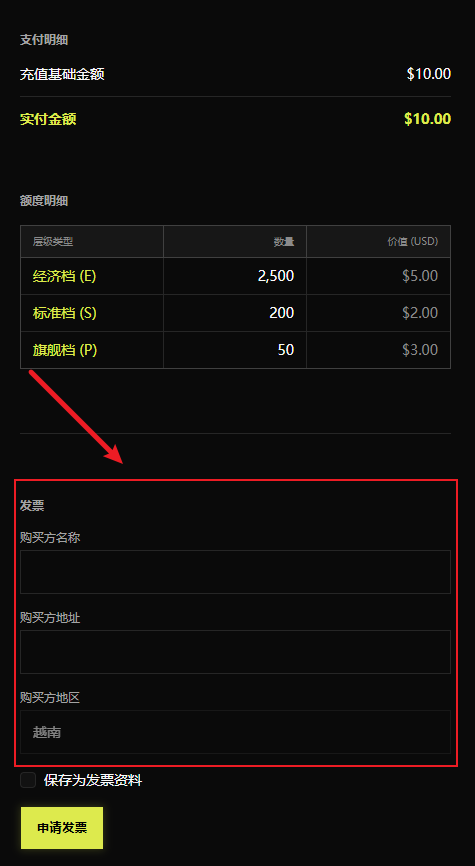
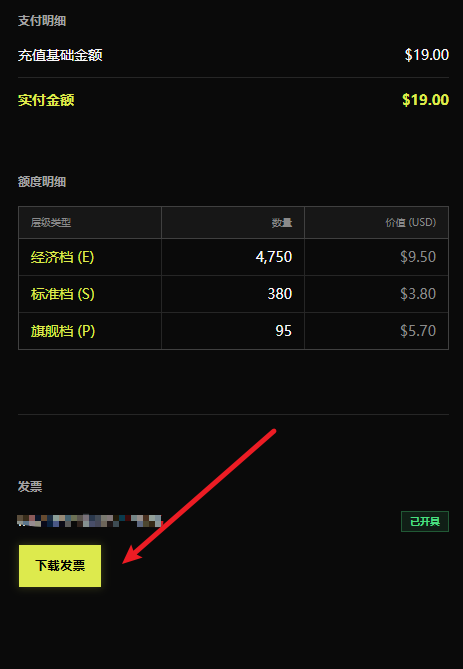
View Details: Shows the record number, creation time, record type, payment breakdown, Credits breakdown, and more. Paid records include an Apply for Invoice button; clicking it expands fields for Buyer Company, Buyer Address, and Buyer Region.

Buyer Region does not need to be filled in—it is read automatically from the Region field on the Personal/Enterprise Settings page. Select Save as invoice profile to have the system auto-fill it next time.

Once completed, click Apply for Invoice and wait for it to be generated, then click Download Invoice to save it.

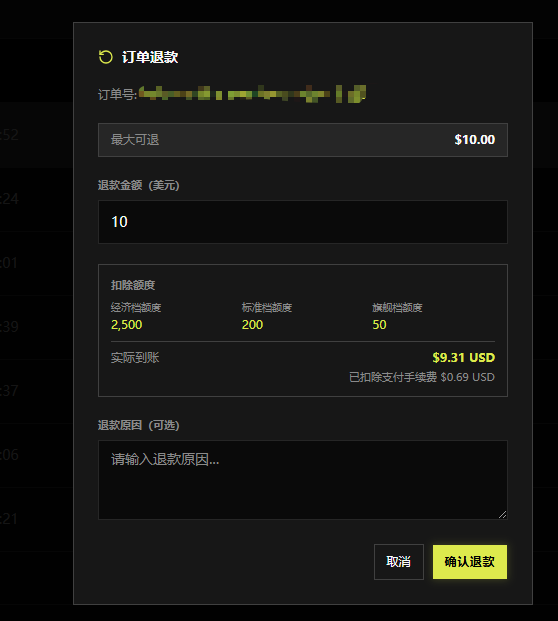
Refund: Records with a Paid status support refunds. Click Refund to open the order refund dialog, enter an amount in the Refund Amount field (partial refunds are supported), and click Confirm Refund. Once successful, Credits are deducted proportionally based on the purchased tier and the refund amount.

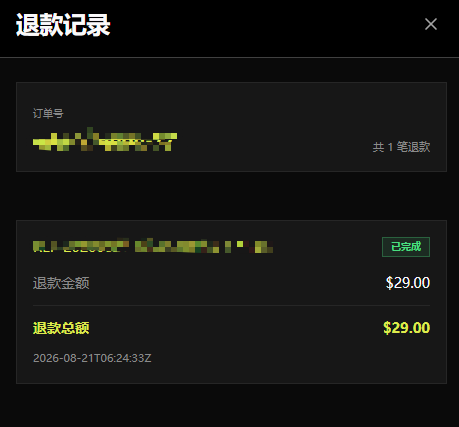
Refund History: Records with a Refunded or Partially Refunded status support viewing refund history. Click to see the detailed refund information.

Subscriptions
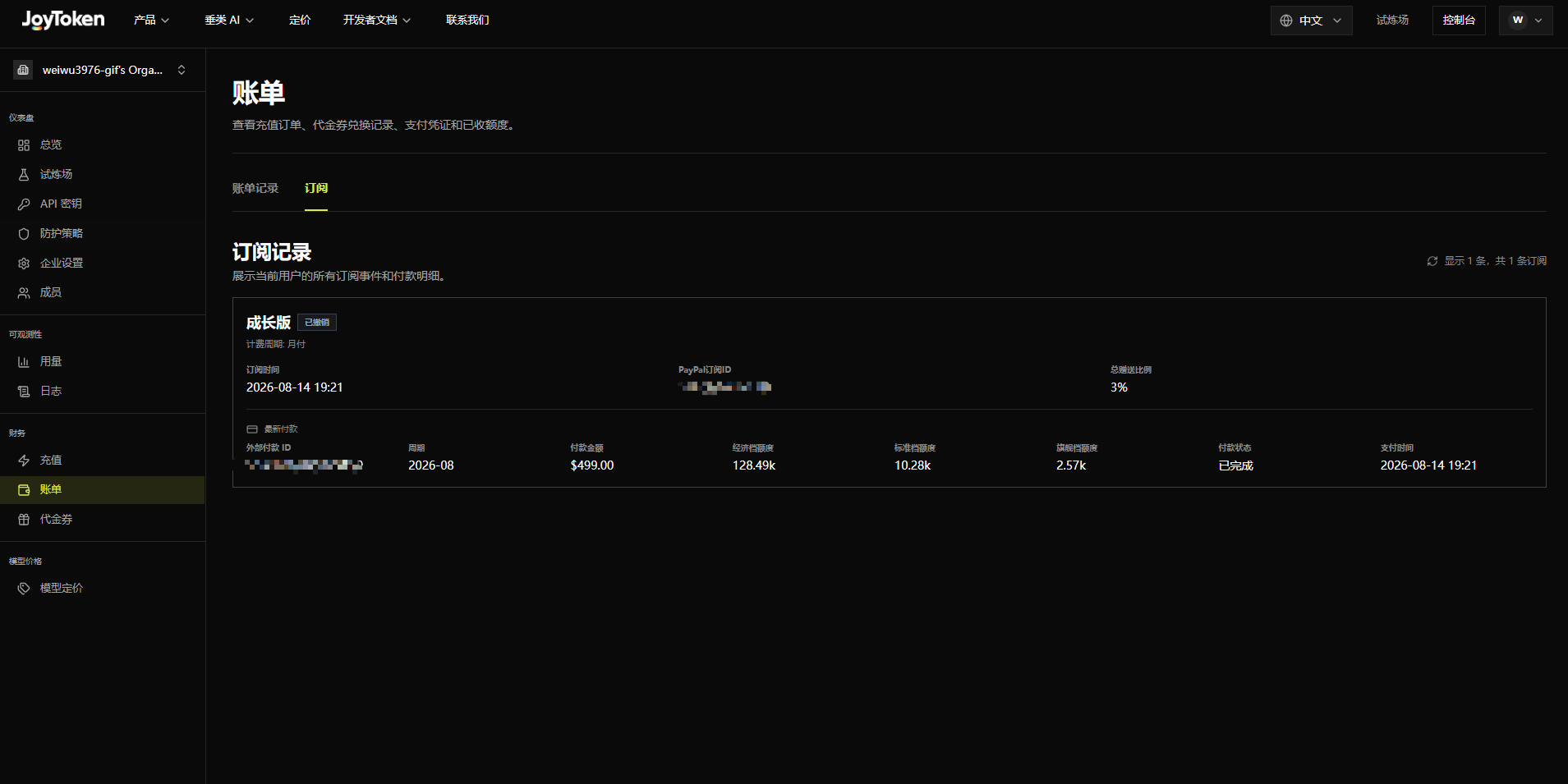
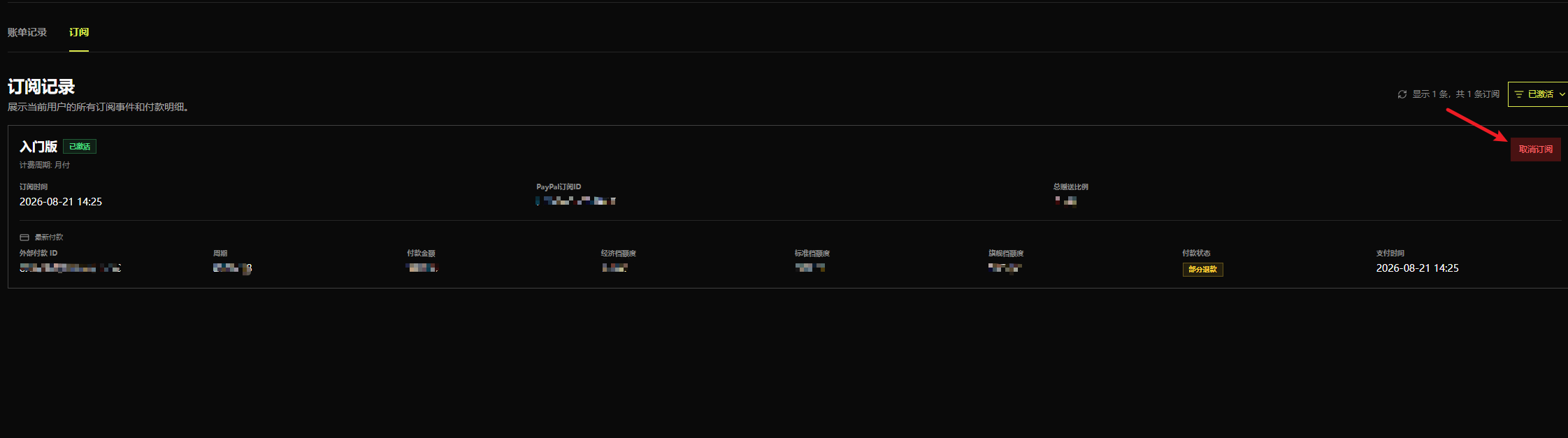
This tab shows all of the current user’s subscription events and payment details. Each subscription card displays: plan name and status (e.g., Growth · Revoked), billing cycle, subscription date, PayPal Subscription ID, and total bonus ratio.
Latest Payment details: external payment ID, cycle, payment amount, Economy/Standard/Premium Credits, payment status, and payment time.

Cancel Subscription
Records with an Active status support cancellation. After clicking Cancel Subscription, subsequent recurring top-ups will stop. Credits already credited to your wallet are unaffected. After canceling, you can subscribe to another plan.